

Automate repetitive tasks with RPA
Nintex RPA enables businesses to create 24/7 virtual workforces that drive speed, agility, and efficiency. Our attended automation helps employees complete tasks more accurately and efficiently, and automated triggers start unattended robots any time 24/7/365, no humans needed.

Increase data quality and accuracy
Eliminate the risk of human errors by reducing how often employees manually input or transfer data. First-entry accuracy helps prevent costly, time-consuming re-work.

Improve employee productivity
Automate mundane tasks. Engage employees with more complex work, optimizing their skillsets and elevating job satisfaction.

Accelerate employee onboarding and training
Bots can show employees how to perform their computer tasks, step by step, accelerating onboarding and training while reducing attrition.
Watch a product demo
Watch how Nintex RPA makes employees more productive.

A desktop personal assistant
We pioneered RPA attended automation and lead the industry with the most complete attended solution. From the desktop, employees can call on robots to help perform tasks and complete processes. Attended automation maximizes productivity by empowering employees to complete work with greater speed, accuracy, and efficiency.
24/7 virtual workers behind-the-scenes
Nintex RPA unattended automation creates virtual robotic workforces that complete system tasks efficiently, with no human errors. Quickly scalable during peak periods, and available 24/7/365, the bots mitigate the need for additional headcount.
Drag-and-drop interface with advanced capabilities
A drag-and-drop designer makes it easy for anyone to build bot-based automations. Patented machine learning and OCR allows robots to interact with applications like a person, working with any software environment or application. Over 200 advanced commands are available to support even the most complex computer tasks.
Advanced security and privacy features protect your data
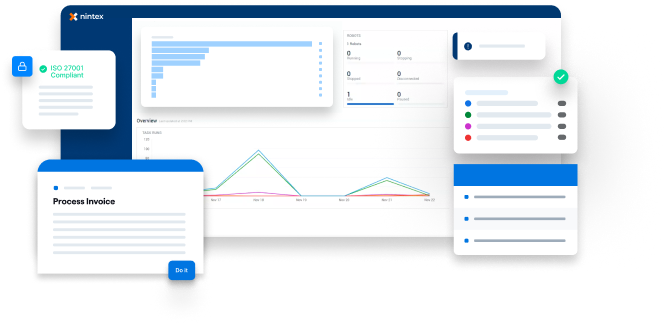
Nintex RPA includes advanced privacy and security features such as multi-tenancy, permissions management, and a credentials vault. We are the only RPA vendor with ISO 27701 certification, plus ISO 9001, SOC-2, and ISO 27001 compliant. Nintex RPA is GDPR compliant and conforms to PCI and HIPAA regulations.
Deploy RPA 5 times faster with Nintex Process Discovery
Nintex Process Discovery is the market-leading tool that helps you decide which tasks bots should automate. Deploy RPA five times faster through quickly identifying, mapping, and recommending the best tasks for automation.
Latest RPA resources
Try Nintex RPA for free

Accelerate your RPA onboarding
Get expert training, mentorship, and guidance from Nintex Professional Services experts to jump-start your Nintex RPA implementation.
Rapid value implementation pack
Support at every step
Look to Nintex process experts to support you at every step in your process transformation journey.
Get support
Customer stories
Companies around the globe are using Nintex on different kinds of projects